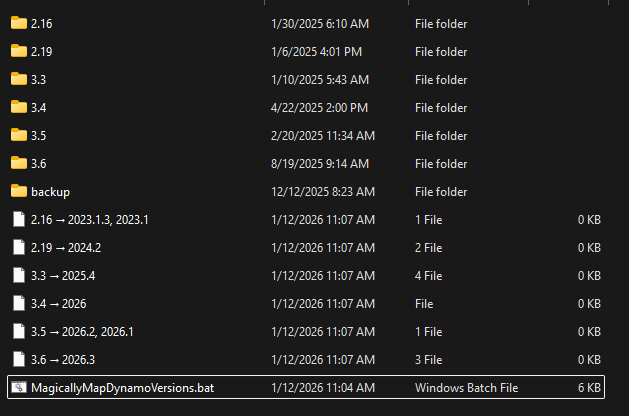
TL;DR: This batch script simplifies Dynamo package management by creating a file-based map that reveals exactly which Dynamo version and package folder each installed Revit version is using.
If you’ve ever opened the Dynamo Packages folder and thought:
“Which one of these is Revit actually using?”
…you’re not alone.
When you have multiple versions of Revit installed, you also have multiple versions of Dynamo - and that usually means multiple package folders. If you install or update packages in the wrong place, best case nothing happens. Worst case, graphs break in ways that are really hard to diagnose.
So the real question becomes:
Which Dynamo package folder belongs to which Revit version?
Why This Is a Problem
Here’s what makes this confusing:
- Revit is versioned by year (2022, 2023, 2024…)
- Dynamo is versioned independently (2.x, 3.x…)
- Each Dynamo version uses its own package folder
- Revit silently decides which Dynamo version (and package folder) gets used
So when you install a package, you’re often guessing:
- Is this for Revit 2023 or 2024?
- Which Dynamo version is actually loading these packages?
- Why does this graph work in one Revit version but not another?
Most of the time, the problem isn’t the graph - it’s the package folder.
The Key Insight: Revit → Dynamo → Package Folder
Revit doesn’t load packages directly.
Instead, the chain looks like this:
Revit Version
↓
Dynamo Version
↓
Dynamo Package Folder
If you don’t know the Dynamo version Revit is using, you don’t really know which package folder matters.
Enter MagicallyMapDynamoVersions.bat
This batch file exists to answer one very practical question:
“Which Dynamo version - and therefore which package folder - does this Revit version use?”
This magic little batch file lives here:
C:\Users<your-user>\AppData\Roaming\Dynamo\Dynamo Revit\MagicallyMapDynamoVersions.bat
When you run MagicallyMapDynamoVersions.bat, it creates a set of empty files whose names encode the mapping between Revit and Dynamo.
@echo off
powershell.exe -ExecutionPolicy Bypass -NoProfile -Command "$scriptPath = Split-Path -Parent '%~f0'; Get-Content '%~f0' | Select-Object -Skip 2 | Out-File -Encoding UTF8 '%TEMP%\MagicallyMapDynamoVersions.ps1'; $content = Get-Content '%TEMP%\MagicallyMapDynamoVersions.ps1' -Raw; $content = $content -replace '\$scriptPath = Split-Path -Parent \$MyInvocation\.MyCommand\.Path', \"`$scriptPath = '$scriptPath'\"; $content | Out-File -Encoding UTF8 '%TEMP%\MagicallyMapDynamoVersions.ps1' -NoNewline; & '%TEMP%\MagicallyMapDynamoVersions.ps1'; Remove-Item '%TEMP%\MagicallyMapDynamoVersions.ps1'"
goto :eof

$mappingUrl = "https://raw.githubusercontent.com/DynamoDS/DynamoPrimerNew/refs/heads/master/a_appendix/host-integration-map.md"
$scriptPath = Split-Path -Parent $MyInvocation.MyCommand.Path
Set-Location $scriptPath

# Delete existing mapping files (files containing the arrow character or with .. extension)
Write-Host "Deleting existing mapping files..." -ForegroundColor Yellow
$magicExt = ".."
Get-ChildItem -Path $scriptPath -File | Where-Object { $_.Name -match "➡️|→|->" -or $_.Name -like "*$magicExt" } | Remove-Item -Force
Write-Host "Existing mapping files deleted." -ForegroundColor Green

# Get all folders in the current directory (excluding files)
$existingFolders = Get-ChildItem -Path $scriptPath -Directory | Select-Object -ExpandProperty Name
Write-Host "Found folders: $($existingFolders -join ', ')" -ForegroundColor Gray

# Download the markdown integration map
Write-Host "Downloading integration map from $mappingUrl..." -ForegroundColor Yellow
try {
    $markdownContent = Invoke-RestMethod -Uri $mappingUrl -Method Get
    Write-Host "Markdown downloaded successfully." -ForegroundColor Green
} catch {
    Write-Host "Error downloading markdown: $_" -ForegroundColor Red
    exit 1
}

# Parse the markdown to extract Revit -> Dynamo mappings
# Find the Revit section and parse the table
$revitSection = $false
$dynamoToRevitMap = @{}

foreach ($line in $markdownContent -split "`n") {
    # Check if we're in the Revit section
    if ($line -match "^### Revit") {
        $revitSection = $true
        continue
    }

    # Stop at next section
    if ($revitSection -and $line -match "^### ") {
        break
    }

    # Parse table rows (skip header and separator lines)
    if ($revitSection -and $line -match "^\|" -and $line -notmatch "^\|\s*---") {
        # Extract Revit version and Dynamo version from table row
        # Format: | 2026.3 | 3.6.0.9395 |
        if ($line -match "\|\s*([^\|]+)\s*\|\s*([^\|]+)\s*\|") {
            $revitVersion = $matches[1].Trim()
            $dynamoFullVersion = $matches[2].Trim()

            # Extract major.minor version from Dynamo (e.g., "3.6" from "3.6.0.9395")
            if ($dynamoFullVersion -match "^(\d+\.\d+)") {
                $dynamoMajorMinor = $matches[1]

                # Add Revit version to the list for this Dynamo version
                if (-not $dynamoToRevitMap.ContainsKey($dynamoMajorMinor)) {
                    $dynamoToRevitMap[$dynamoMajorMinor] = @()
                }
                $dynamoToRevitMap[$dynamoMajorMinor] += $revitVersion
            }
        }
    }
}

# Process each Dynamo version (only if corresponding folder exists)
Write-Host "Creating mapping files..." -ForegroundColor Yellow
foreach ($dynamoVersion in $dynamoToRevitMap.Keys | Sort-Object) {
    # Only create mapping file if folder exists for this Dynamo version
    if ($existingFolders -notcontains $dynamoVersion) {
        Write-Host "Skipping $dynamoVersion (no folder found)" -ForegroundColor DarkGray
        continue
    }

    $revitVersions = $dynamoToRevitMap[$dynamoVersion]

    # Group and order: remove duplicates, then sort (newest first)
    # Custom sort to handle version numbers properly (e.g., 2026.3 > 2026.2 > 2026.1 > 2026)
    $sortedRevitVersions = $revitVersions | Select-Object -Unique | Sort-Object {
        # Parse version for proper sorting (e.g., "2026.3" -> [2026, 3])
        $parts = $_ -split '\.'
        [int]$major = $parts[0]
        [int]$minor = if ($parts.Count -gt 1) { [int]$parts[1] } else { 0 }
        [int]$patch = if ($parts.Count -gt 2) { [int]$parts[2] } else { 0 }
        # Return sortable value (newer versions have higher values)
        $major * 10000 + $minor * 100 + $patch
    } -Descending

    # Join multiple Revit versions with comma and space (e.g., "2026.3, 2026.2, 2026.1")
    $revitVersionsString = $sortedRevitVersions -join ", "

    # Create filename: "DynamoVersion → RevitVersions.." (comma-separated if multiple)
    # Using → (U+2192) instead of emoji for better filename compatibility
    $arrow = [char]0x2192  # Rightwards arrow (→)
    $magicExt = ".."
    $fileName = "$dynamoVersion $arrow $revitVersionsString$magicExt"
    $filePath = Join-Path $scriptPath $fileName

    # Create empty file with .. extension
    New-Item -Path $filePath -ItemType File -Force | Out-Null
    Write-Host "Created: $fileName" -ForegroundColor Cyan
}

Write-Host "`nMapping files created successfully!" -ForegroundColor Green
No registry hacks.
No DLL inspection.
No guessing.
Just filenames.
Why This Helps With Packages
Once you know the Dynamo version tied to a Revit install, the package story becomes much clearer.
For example:
- Revit 2023 → Dynamo 2.x →
Dynamo\2.x\packages - Revit 2024 → Dynamo 3.x →
Dynamo\3.x\packages
Now you know:
- Where to install packages
- Which package versions are safe to use
- Why a package shows up in one Revit version but not another
This is especially useful if you:
- Maintain shared package environments
- Support multiple Revit versions
A File-Based Map Is Enough
The clever part of this approach is that it doesn’t try to be clever.
If a file exists, the mapping exists.
That means:
- Any script can check it
- Any tool can rely on it
- Anyone can inspect it just by browsing a folder
It turns “which package folder should I care about?” into a question with a concrete, verifiable answer.
..john